How to batch-generate product images from a CSV
A pottery seller needs matching information cards for three mug listings. Put the names, capacities and short notes in a CSV, then make three PNGs from one layout.
We will use the Etsy listing image template and a fictional shop, SUNDAY CLAY. These are supporting listing cards, not product photographs. The template’s mug illustration stays the same in every row; only the text changes. Check your selling channel’s image requirements before using any output in a listing.
What you need
- The Etsy listing image template, at 2400 × 2000 pixels.
- The three-row sample CSV below, or your own UTF-8 CSV with the same text fields.
- A browser with room to generate and download the images. Keep the tab open until the batch finishes.
Where your data goes: rendering and cropping run in your browser. Saving a template after sign-in uploads its design data and embedded images to your cloud workspace. Without sign-in, templates are saved in this browser. This tutorial can be followed without signing in.
Download the three-product sample
Download sample product CSV — three fictional products, five columns, no image URLs.
sku,brand,title,detail,note
clay-250,SUNDAY CLAY,The coffee mug,Stoneware · 250 ml,Small cup for a short coffee
clay-350,SUNDAY CLAY,The everyday mug,Stoneware · 350 ml,Your daily tea and coffee cup
clay-450,SUNDAY CLAY,The breakfast mug,Stoneware · 450 ml,A larger cup for slow mornings
The template uses brand, title, detail and note as text variables. The extra sku column names the files and is kept in the manifest; it does not appear on the card. Keep these headers when editing the sample, and fill every template field in every row.
Make the listing cards, step by step
- Open the Etsy listing image templateOn the template page, choose Open in Studio. Leave the canvas size, colours and illustration unchanged to reproduce the outputs below. In Template name, enter
Sunday Clay product cards. - Check the text variablesThe Layers list already contains
{{brand}},{{title}},{{detail}}and{{note}}. The Template variables fields contain their preview values. Leave the curly-brace placeholders in the layers: replacing a placeholder with literal text would make that text fixed across the batch. - Save and choose Use in a batchChoose Save, then Use in a batch. The Batch create page opens with your design selected under Saved template. Saving while signed in uploads the template’s design data and any embedded images; saving without sign-in keeps the template in this browser.
- Add the three-row CSVChoose Upload CSV and select the downloaded sample, or paste the sample text into CSV data · first row contains variable names. For another template, Download sample CSV gives you that template’s fields and one row of defaults. Our downloadable sample adds the
skucolumn and two more product rows. - Choose SKU names and validate every rowIn Name each file after (so it matches your spreadsheet), choose
skuif it is not already selected. Choose Validate & preview. You should see 3 images ready and the three file names below. Use Preview row to inspect rows 1, 2 and 3. Check the product title, capacity and note on each card. Long text wraps or shrinks; text that still cannot fit blocks export. - Generate and inspect the ZIPChoose Generate & download ZIP and keep the tab open. The download contains three PNGs and
manifest.json. Unzip it and open each PNG before adding it to the corresponding product listing. The manifest records the template name, dimensions and CSV rows so you can compare the files with your source data.
What the sample produces
These three PNGs were made by running the sample CSV through Framelet’s Batch create. Each file is 2400 × 2000 pixels. The layout and illustration stay fixed while the title, capacity and note follow the CSV row. Select a preview to open the full-size PNG.
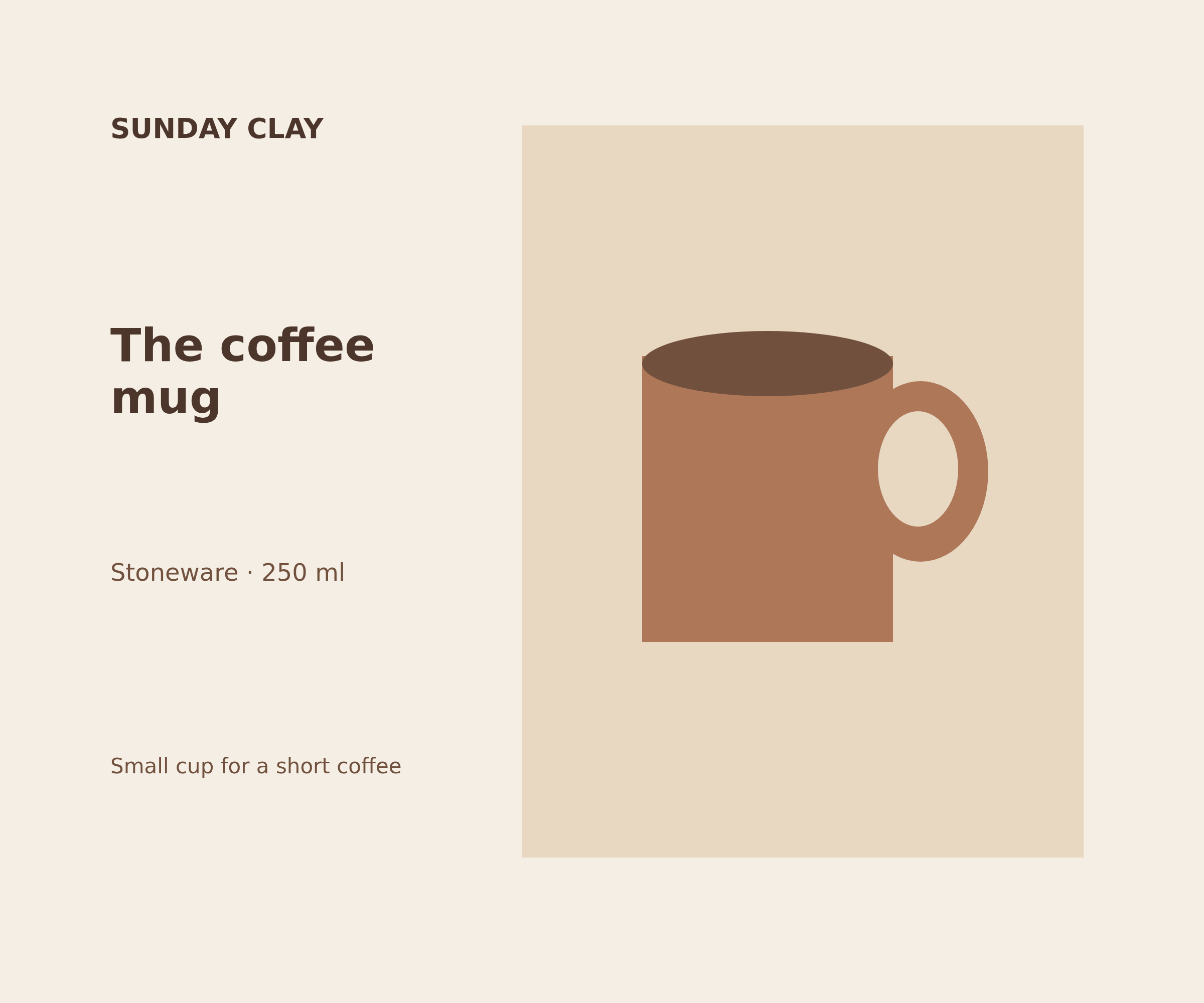
clay-250.pngRow 1 · Coffee mug · 250 ml
Download PNG
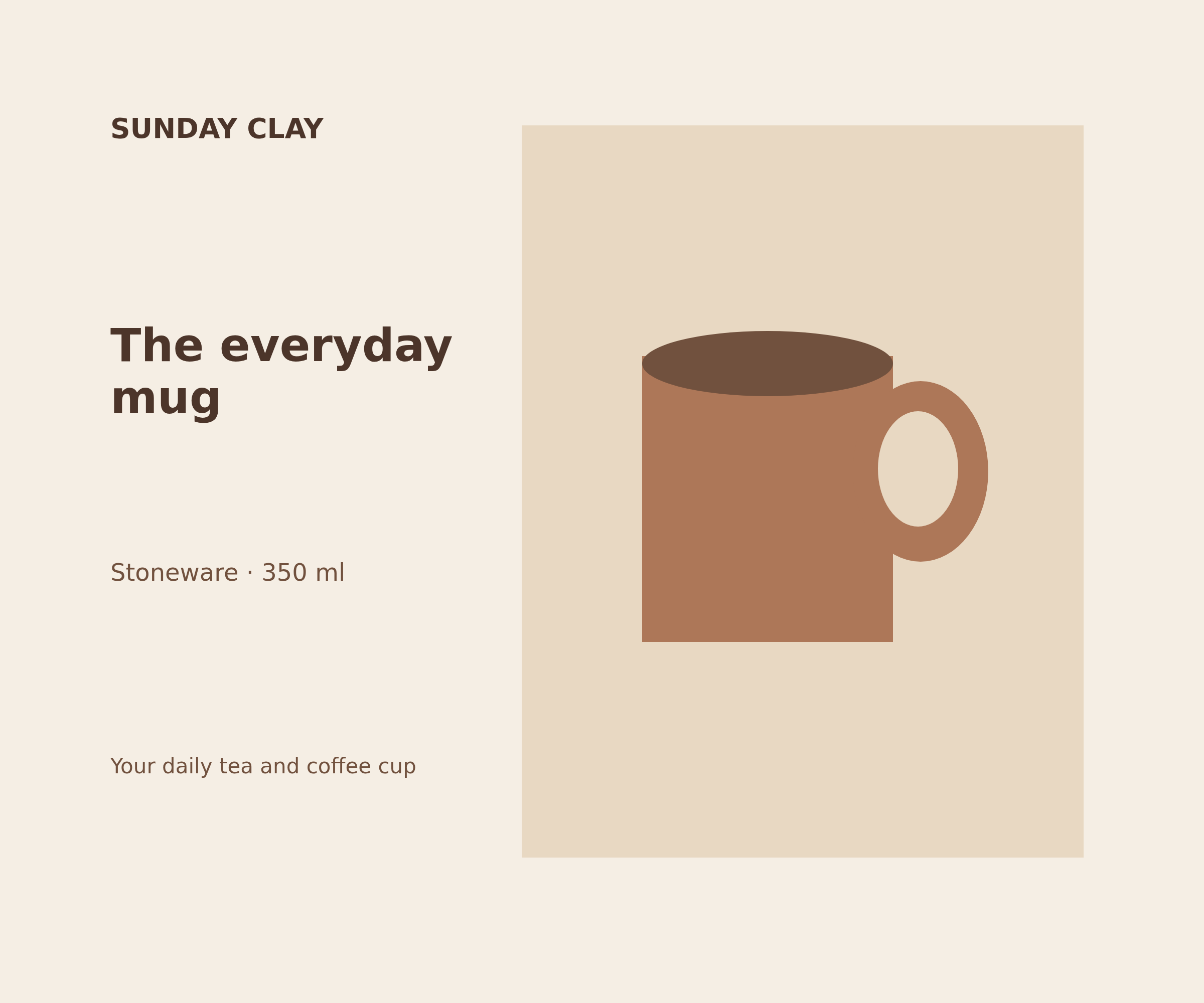
clay-350.pngRow 2 · Everyday mug · 350 ml
Download PNG
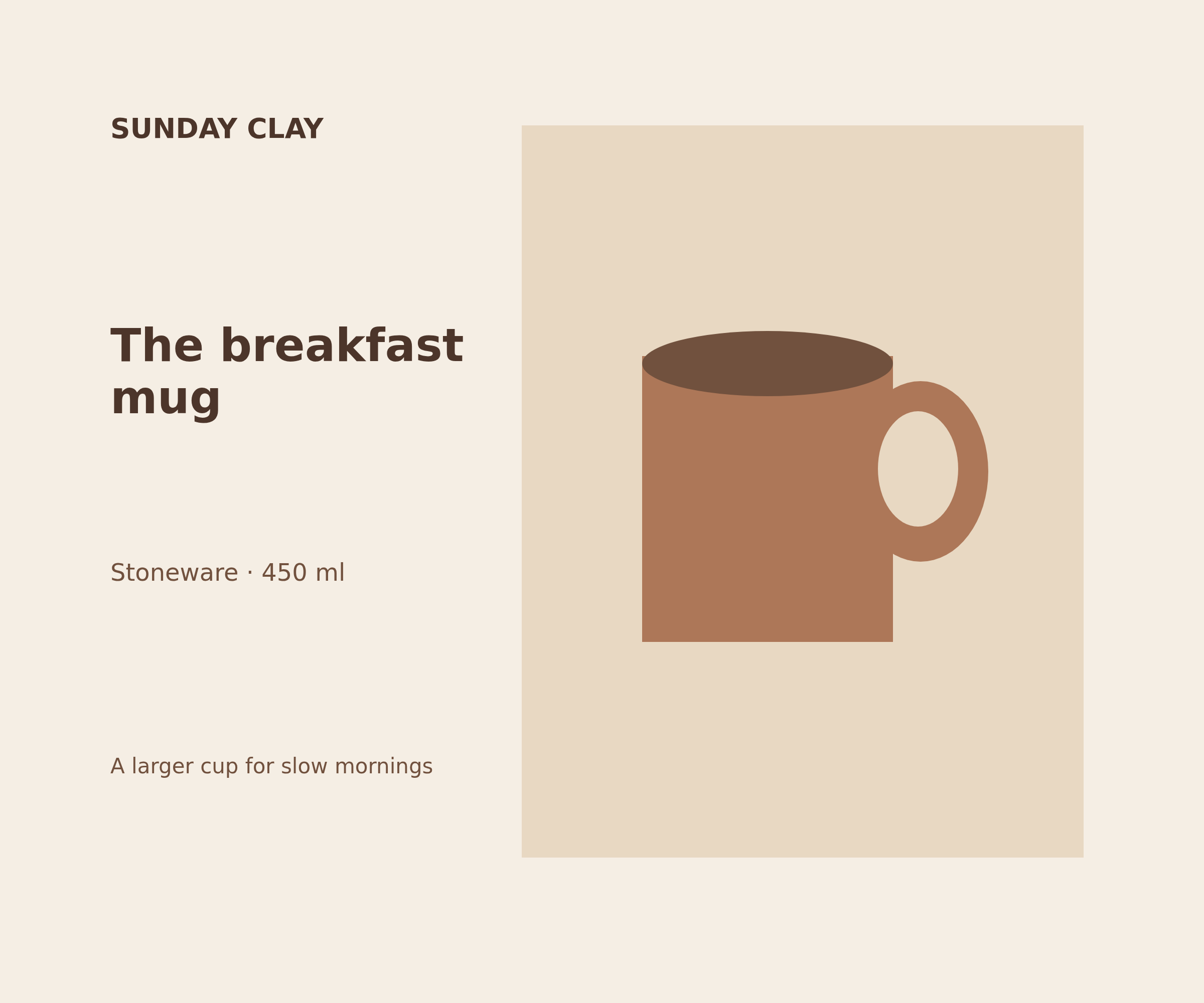
clay-450.pngRow 3 · Breakfast mug · 450 ml
Download PNG
The sample contains no photographs: the mug is the template’s built-in illustration. To use a real photo, edit the template with Add image before saving. That image stays fixed throughout the batch. For a different photo per product, replace the image manually and run a separate batch for each saved design.
Limits to check before using your own catalogue
- CSV rows replace text only. There is no per-row image URL field or automatic photo replacement.
- One batch is limited to 50 data rows and a CSV smaller than 300 KB. Each template has a single page.
- Batch downloads contain PNGs. The editor also exports individual SVGs; this CSV workflow does not export JPEG, PDF or video.
- No direct marketplace publishing, scheduled runs or Google Sheets sync. You inspect and upload the finished files yourself.
- Rendering and cropping run in your browser. Saving a template after sign-in uploads its design data and embedded images.
Try the three-row sample first
Reproduce these cards, then replace the sample text with your own product information and check every preview.
Open the sample template — no sign-up neededExplore CSV to images — templates, text variables and browser PNG batches →